Disclosure: This tutorial is provided free of charge. PickSmart.ai may earn small commissions from purchases made through retailer links (Amazon, Best Buy) at no extra cost to you. This helps us keep the tool free and continuously improve it.
Looking for a laptop but overwhelmed by thousands of options? PickSmart.ai helps you find your perfect laptop in 2-3 minutes using a revolutionary priority-based discovery system. This complete tutorial will show you exactly how to use it.
What You’ll Learn
- How the priority-based system works (and why it’s better than filters)
- Step-by-step walkthrough with real screenshots
- Mobile-specific instructions for touchscreen devices
- Advanced tips to refine your search
- Common scenarios and how to use the tool for each
How PickSmart.ai Works: The Priority System
Unlike traditional laptop finders that use rigid filters, PickSmart.ai uses a priority-based ranking system. Instead of eliminating laptops that don’t match exact criteria, it shows you the best matches based on what matters most to you.
Why this is better:
- No perfect laptop exists – You’ll always compromise somewhere. The tool helps you compromise on the right things.
- Discover unexpected gems – A laptop might excel in your top priorities even if it’s not perfect elsewhere.
- Flexible searching – Easily adjust priorities to see different recommendations.
- Data-driven – Based on analysis of 7,000+ real laptop models.
Step-by-Step Tutorial
Step 1: Access the Tool
Visit picksmart.ai in your web browser. You’ll see the region selection page where you can choose between United States and India markets.

Select your region to see laptops with relevant pricing and availability for your market.
Step 2: View the Tool Interface
After selecting your region (e.g., United States), you’ll see the main laptop selector interface with priority selection options.

Step 3: Select Your Top Priorities (2-5 Parameters)
You’ll see a list of available parameters. Select 2-5 that matter most to you:
- Price Filter (Choose a range – min and maximum price for your selection)
- Brand (Select between Premium/ High/ Mid/ Low)
- Processor (Processing speed (High end to Low end)
- RAM (from 4 GB to 32+ GB)
- SSD (from 64 GB to 4 TB)
- Screen Size (Small-sized to Large-sized)
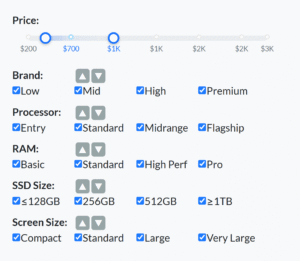
Tip: Don’t select too many parameters. Focus on your top 3-4 priorities for best results. The more parameters you add, the fewer laptops will rank highly in all of them.
Step 4: Rank Your Priorities (Drag to Reorder)
The order matters! Your #1 priority has the most weight in the recommendation algorithm.
Desktop Users: Simply drag and drop the parameters to reorder them.
Mobile/Touchscreen Users:
- Touch and hold a parameter for ~1 second until it “lifts” from the list
- While still holding, drag it up or down to your desired position
- Release to drop it in place
- Repeat until your priorities are in the right order
Figure 4: Selected priorities – drag to rank by importance
Example Priority Rankings:
Student Budget Priority
- Value Rating
- Battery Life
- Portability
- Performance Index
Gamer Priority
- Graphics Power
- Performance Index
- Display Quality
- Value Rating
Business Professional
- Build Quality
- Portability
- Battery Life
- Performance Index
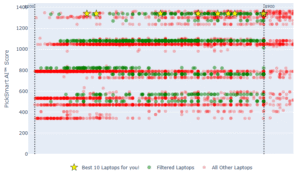
Step 5: “Visualize” your Matches
Once you’ve ranked your priorities, the tool will analyze thousands of laptops and show you a scatter plot visualization.
Step 6: Explore Laptop Details
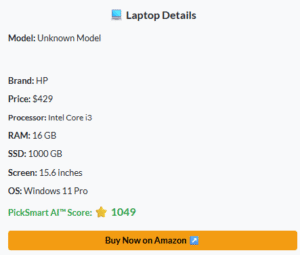
Click on any point in the visualization to see the individual laptops. You’ll see:
- Model name and brand
- Key specifications (RAM, processor, storage, screen size)
- Current price and availability
- Direct links to Amazon, Best Buy, or other retailers
- Performance scores for your selected priorities
Understanding the Visualization:
- Each point = a cluster of similar laptops
- Point position = how well laptops match your priorities
- Better matches appear in optimal positions
- Click any point to see the laptops in that cluster
Advanced Tips & Pro Techniques
Choose the Top Left Quadrant

Section 1 refers to cheaper laptops with high performance score – Best Buys!!
Section 2 refers to costlier laptops with high performance score
Section 3 refers to cheaper laptops with low performance score
Section 4 refers to costlier laptops with low performance score
Refining Your Search
Try different priority orders: Swapping your #1 and #2 priorities can reveal completely different recommendations. Experiment!
Use 3 parameters for breadth, 5 for precision:
- 3 parameters = wider range of matches, more flexibility
- 5 parameters = narrower results, very specific needs
Understanding Trade-offs
No laptop excels at everything. Common trade-offs:
- Performance vs Battery Life – Powerful processors drain batteries faster
- Portability vs Display Size – Larger screens mean heavier laptops
- Graphics Power vs Price – Dedicated GPUs add significant cost
- Build Quality vs Value – Premium materials increase price
Frequently Asked Questions
How accurate is the data?
PickSmart.ai analyzes 7,000+ laptop models from major retailers including Amazon, Best Buy, Walmart, and manufacturer direct sales. Prices and availability are updated regularly.
Can I save my search or create an account?
Currently, the tool doesn’t require an account and doesn’t save searches to protect your privacy. Simply bookmark results or take screenshots of laptops you’re considering.
Does PickSmart.ai work outside the USA?
Yes, the tool includes data for multiple regions including USA, India, and others. Select your region at the start to see relevant pricing and availability.
How often should I check back for updates?
If you’re actively shopping, check weekly. Laptop prices fluctuate frequently, especially during sales events (Black Friday, back-to-school, etc.).
Ready to Find Your Perfect Laptop?
You now know how to use PickSmart.ai like a pro. The tool does the heavy lifting – analyzing thousands of laptops in seconds – so you can focus on making the right decision for YOUR needs.
Leave a Reply